
ECHOES installation guide
Install ECHOES on your Windows computer
Follow these steps to download and install ECHOES. Your browser and Windows prompts may look slightly different from the examples.
Download the installer
Open the ECHOES download page. The download should begin automatically. If it does not, select the Download ECHOES button for the current release. Save the installer to your computer.
-
Check any browser prompts
If your browser asks whether to keep the file, first confirm that you downloaded it from SDFI. In the browser’s Downloads menu, hover over the file, select the three dots, then choose Keep.
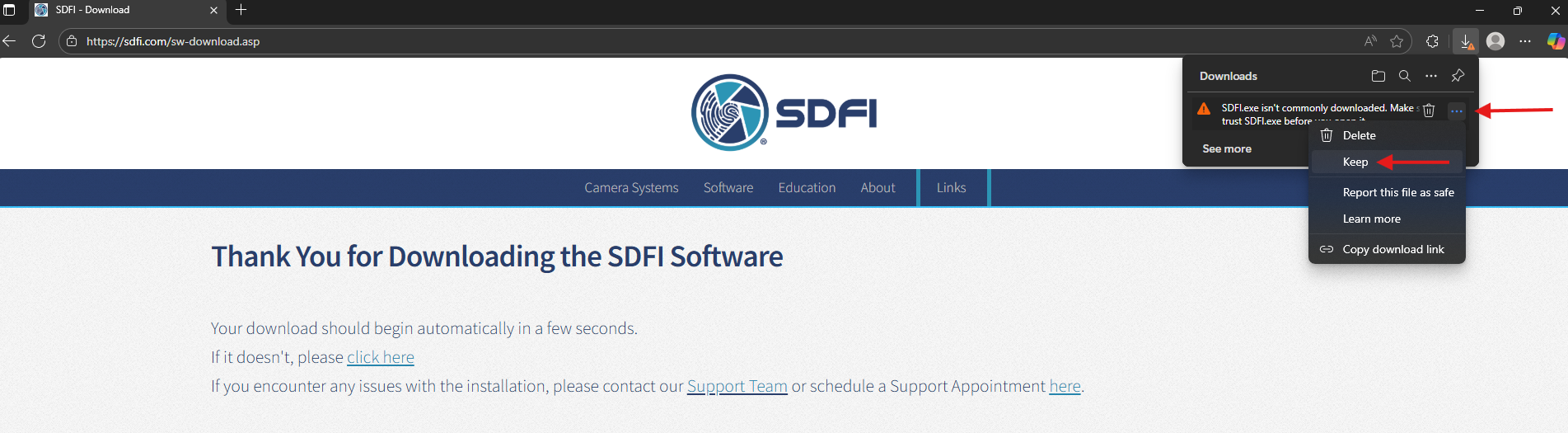
Choose Keep in the download menu. Select the image to view it larger. 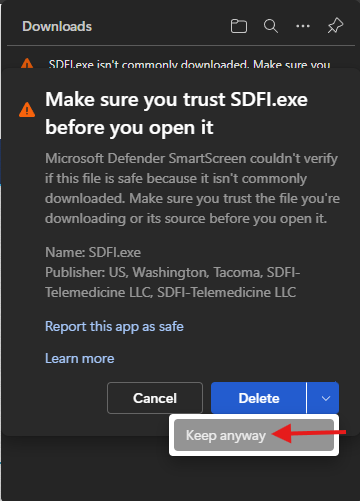
Confirm the download with Keep anyway. -
Find the downloaded file
Open File Explorer from the Windows taskbar.

The File Explorer icon is highlighted in this example. 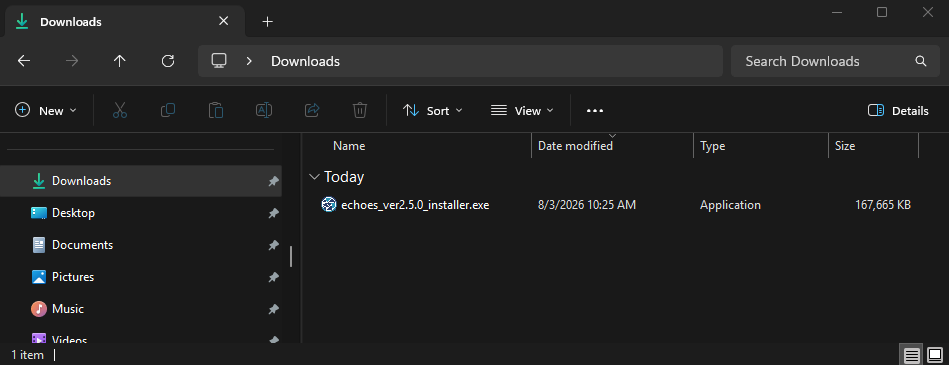
Find the installer in your Downloads folder. Open the installer
Double-click the downloaded ECHOES-X.X.X-Setup.exe file, with your version number in place of X.X.X. If Windows displays a protection prompt for the installer you obtained from SDFI, the examples show More info, followed by Run anyway. Follow your organization’s policy; ask IT or SDFI Support if you are unsure.
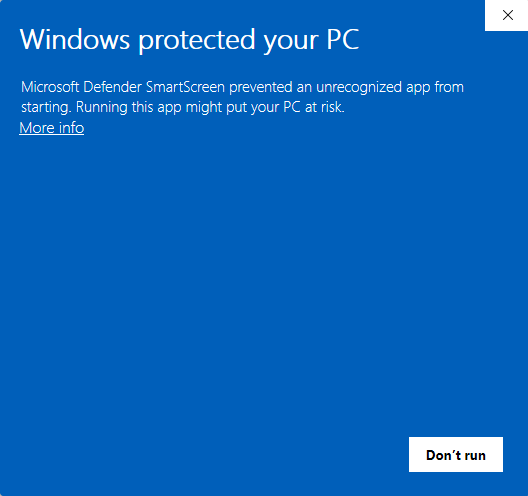
Select More info 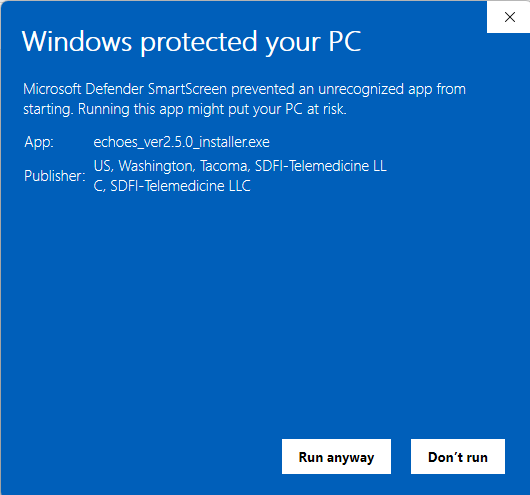
Review the expanded prompt Install ECHOES
Select Install to begin. The installer creates or replaces the desktop shortcut automatically.
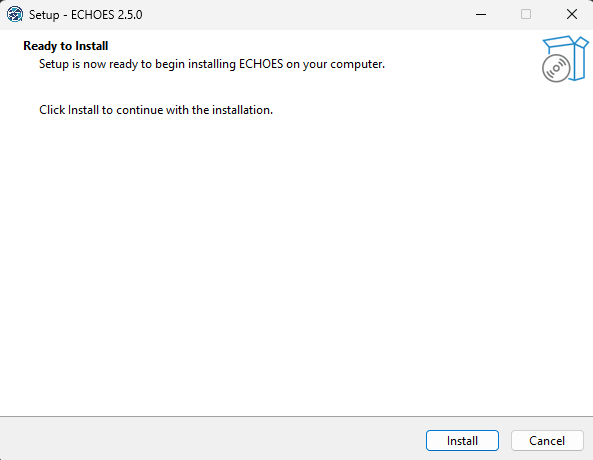
Earlier-version example: select Install. Finish and launch
To open ECHOES immediately, leave the launch checkbox selected, then choose Finish. You can also open ECHOES later using the desktop shortcut.
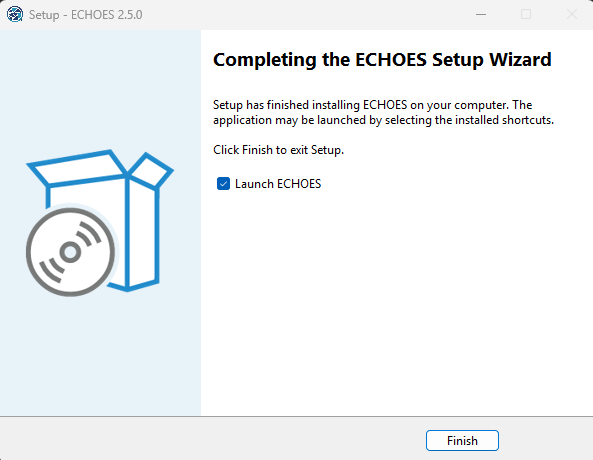
Earlier-version example: select Finish to complete setup.
Need a hand?
Use Scheduling & Support to book a software support appointment, or email Support@SDFI.com.
Open the ECHOES User Guide